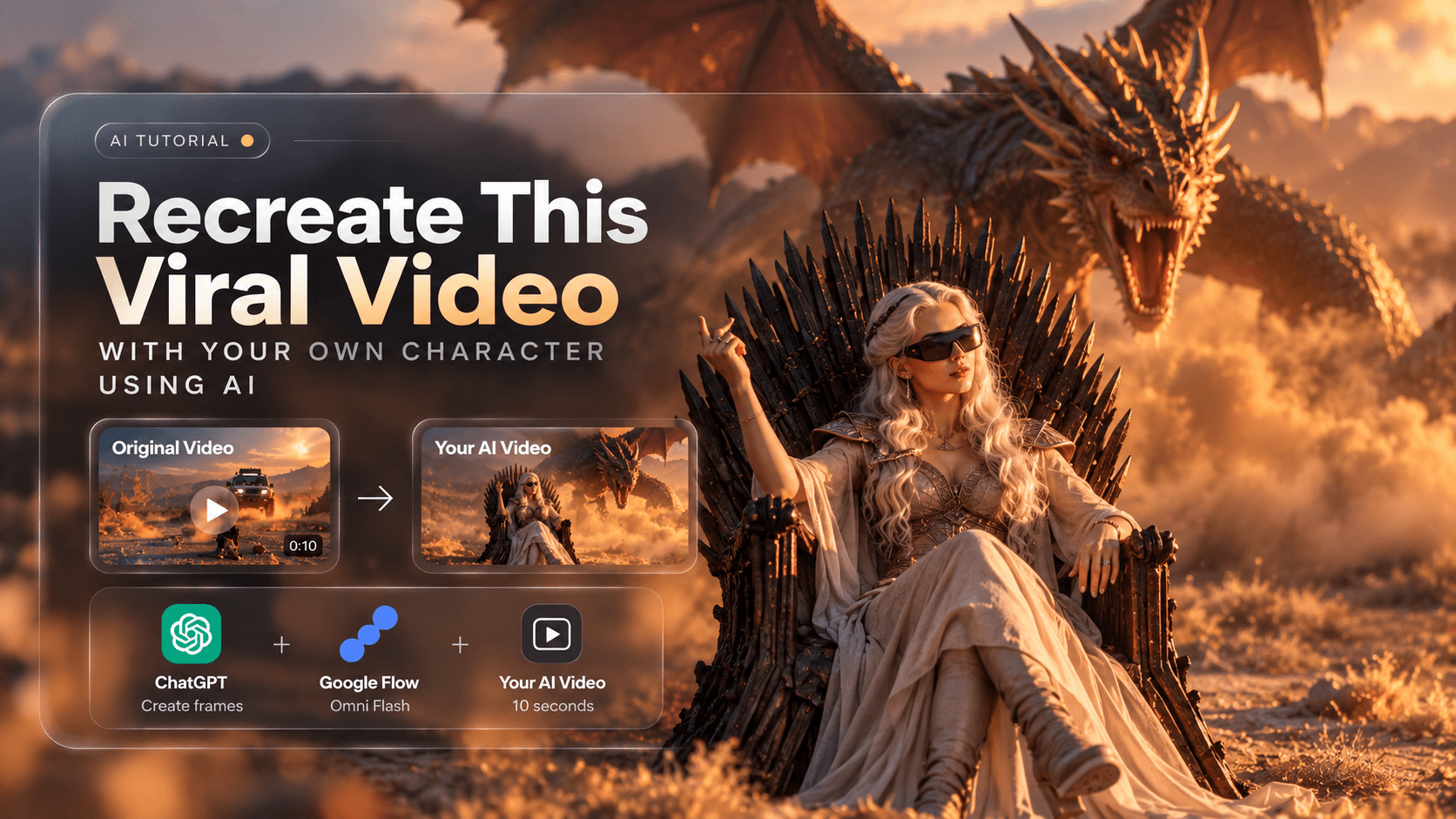
How to Recreate a Viral Video With Your Own Character and AI-Generated Elements
Recreating a viral video with AI does not mean asking a model to invent the entire scene from scratch. The more reliable approach is to give the AI the original video as the motion and camera reference, while using generated images to define how your replacement character and objects should look.
In this workflow, we use ChatGPT + Google Flow's Omni Flash to recreate a short video while preserving the original camera movement, environment, framing, and timing.
The same process can be adapted for more creative replacements, such as turning a vehicle into a fantasy creature while keeping the original movement.
1. Start With a Short Reference Video
Choose the video you want to recreate and work with a short section, ideally around 10 seconds.
The original video is important because it gives the AI information that is difficult to describe manually:
- Camera movement
- Framing
- Subject position
- Timing
- Perspective
- Background movement
- Object movement
- Speed and trajectory
For the best result, use a section where the main action is easy to follow.
Only download and reuse videos that you have permission to use.
2. Capture the Important Frames
Take screenshots from the reference video that show how the scene begins and how it develops.
At minimum, capture:
- The first frame of the sequence.
- The final frame of the sequence.
These frames help establish the visual state that the generated video should maintain.
You can also capture additional frames when the action changes significantly. For example, if a car suddenly appears from behind a cliff, capturing the moment before and after the reveal can help communicate the intended transformation.
3. Prepare Your Replacement References
Now prepare the visual references for the elements you want to replace.
For example, you might have:
- A character reference
- A vehicle or object reference
- A creature reference
- A generated replacement environment or prop
The important distinction is that these images describe what the replacement should look like, while the original video describes how the scene should move.
For example, if you want to replace a car with a dragon, the dragon reference should establish its appearance, scale, anatomy, colors, and overall design.
The original car's movement should still come from the source video.
4. Give the References to ChatGPT
Upload the original video, the important screenshots, and your replacement references to ChatGPT.
Ask ChatGPT to create replacement images that preserve the original composition while changing only the elements you want to replace.
A useful prompt is:
Using the uploaded original video, reference frames, and replacement references, create matching replacement frames for the scene.

Keep the original composition, camera angle, perspective, environment, lighting, subject position and scale.

Replace only the specified subject or object with the provided replacement design.

Keep the replacement character's face, body, clothing, hairstyle and overall appearance consistent.

Keep the replacement object's shape, proportions, materials, colors and design consistent.

Do not redesign the scene. The generated images should look like the same shot with the original subject replaced.
The goal is not to create a completely new scene. The goal is to establish what the replacement should look like inside the existing composition.
5. Use the Images as Storyboard References
If the final video contains a continuous action, create multiple reference images showing how that action should progress.
For example, imagine the original video shows a car emerging from behind a cliff.
Your reference images could show:
- The character sitting calmly before the car appears.
- The replacement creature beginning to emerge from behind the cliff.
- The creature fully entering the frame.
These are not three separate shots.
They are visual checkpoints for one continuous shot.
The final video should smoothly connect these states rather than treating them as individual scenes.
6. Put Everything Into Google Flow
Open Google Flow and create a video using Omni Flash and the Ingredients workflow.
Add the relevant references, including:
- Original video
- Generated start/reference frames
- Character reference
- Replacement object or creature reference
The basic principle is:
The original video controls the motion. The reference images control the appearance.
This distinction is one of the most important parts of the workflow.
7. Tell Flow to Preserve the Original Motion
When generating the video, explicitly tell Flow that the original video is the primary motion reference.
Use a prompt like:
Create one continuous 10-second video using the original video as the strict motion and camera reference.

Use the provided images as visual references for the replacement character and replacement object.

Preserve the original camera movement, framing, perspective, timing, environment, lighting and overall composition.

Replace only the specified subject and object. Do not redesign or reconstruct the rest of the scene.

Keep the replacement character's face, hairstyle, clothing, body proportions, posture and appearance consistent throughout the entire shot.

Keep the replacement object or creature's design, proportions and appearance consistent throughout the entire shot.

Follow the original video's movement frame-by-frame as closely as possible.

Do not invent a new camera movement or new action.

The final result should look like the original video was filmed with the replacement elements physically present in the scene.
This is especially important when replacing an object whose movement is the main visual action.
8. Replacing a Car With a Dragon
A more advanced example is replacing a car with a dragon while keeping the original stunt.
Do not simply ask the model to make a dragon fly through the scene.
Instead, treat the car as a motion-tracking proxy.
If the original car appears from behind a cliff, the dragon should also begin completely hidden behind that same cliff.
The sequence should remain:
Empty cliff
    ↓
Nothing visible
    ↓
Dragon begins appearing from behind the cliff
    ↓
Dragon follows the car's original trajectory
    ↓
Dragon reaches the same screen position
    ↓
Dragon exits following the original movement
The dragon can translate the car's physical movement into believable creature movement, but the trajectory and timing should come from the original video.
For example:
- Car rises → dragon rises.
- Car accelerates → dragon accelerates.
- Car approaches the camera → dragon approaches along the same trajectory.
- Car passes behind the character → dragon occupies the corresponding position.
- Car exits the frame → dragon exits at the same timing.
The dragon should use realistic wing movement, body momentum, tail movement, dust displacement and motion blur to make that transferred movement feel physically believable.
9. Lock the Elements You Do Not Want Changed
One of the biggest problems with AI video generation is that the model may reinterpret parts of the scene that you intended to keep.
Be explicit about what is locked.
For example:
Do not replace, modify, remove or morph the woman.

Do not replace, modify, remove or morph the iron throne.

Keep the woman's face, hairstyle, clothing, body position, hand position and expression consistent.

Keep the throne's design, position, scale and orientation consistent.

Only replace the original car with the dragon.

Nothing else in the scene should be redesigned.
This becomes especially useful when the replacement object is visually dramatic.
The model should understand that the dragon is replacing only the car, not the woman, throne, environment or camera.
10. Preserve the Original Entrance
When the original object appears from somewhere off-screen or behind an obstruction, reproduce that reveal rather than inventing a new entrance.
For example, if the car is hidden behind a cliff at the beginning, the replacement dragon should also be hidden behind the cliff.
Do not have the dragon:
- Fly down from the sky.
- Appear through a portal.
- Spawn suddenly in the middle of the frame.
- Already appear in the background.
- Enter from a completely different direction.
Instead, preserve the original reveal.
The audience should feel as though the same event is happening, except the object has been transformed.
11. Keep the Video Continuous
The generated images should work as visual checkpoints rather than separate clips.
Avoid:
- Cuts between reference images
- Sudden camera changes
- Teleportation
- Morphing between objects
- Large changes in character appearance
- Unexplained changes in scale
- Completely new actions
The goal is a single continuous shot where the scene evolves naturally from one reference state to the next.
12. The Complete Workflow
The entire process can be summarized as:
Original video
      ↓
Select a short sequence
      ↓
Capture important frames
      ↓
Prepare character/object references
      ↓
ChatGPT creates matching visual references
      ↓
Google Flow
      ↓
Omni Flash + Ingredients
      ↓
Original video controls motion
      ↓
Reference images control appearance
      ↓
Final recreated video
The key idea is simple:
Video = motion and camera. Images = appearance and visual identity.
Once you separate those two jobs, recreating an existing shot becomes much more controllable.
Instead of asking AI to invent an entirely new video, you give it the original video's movement and ask it to perform the same scene with your chosen character and object.
That is what makes the final result feel like a replacement of the original shot rather than a completely new AI-generated video.